


HP DeskJet 2720: A Comprehensive Market Review
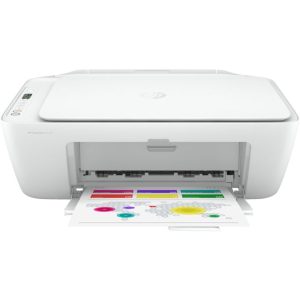
The HP DeskJet 2720 is a versatile and affordable all-in-one printer designed for home and small office use. With its compact design, wireless capabilities, and user-friendly features, it has become a popular choice for those looking for a reliable printing solution without breaking the bank. This article will delve into the features, usability, and overall performance of the HP DeskJet 2720, providing you with all the information you need to decide if it’s the right printer for you.
Key Features
- All-in-One Functionality: The HP DeskJet 2720 combines printing, scanning, and copying in one device, making it a versatile tool for various tasks.
- Wireless Connectivity: With built-in Wi-Fi, you can print from your smartphone, tablet, or laptop without needing a direct connection.
- Compact Design: Its sleek and compact design makes it easy to fit into small spaces, perfect for home offices or dorm rooms.
- HP Smart App: The HP Smart App allows you to set up the printer, scan documents with your camera, and print from cloud services like Google Drive and Dropbox.
- Energy Efficient: It is designed to be energy-efficient, with automatic shut-off and low power consumption when not in use.
Setting Up the HP DeskJet 2720
- Unboxing and Initial Setup:
- Remove the printer and all its components from the box.
- Plug in the power cord and turn on the printer.
- Follow the on-screen instructions to complete the setup process, including language selection and alignment.
- Installing Ink Cartridges:
- Open the ink cartridge access door.
- Insert the provided ink cartridges into their respective slots.
- Close the access door and wait for the printer to recognize the cartridges.
- Connecting to Wi-Fi:
- Press the Wireless button on the printer to initiate Wi-Fi setup.
- Use the HP Smart App on your smartphone or tablet to find and connect the printer to your Wi-Fi network.
- Loading Paper:
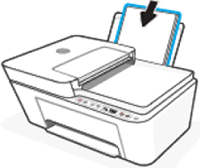
- Open the paper input tray.
- Adjust the paper width guides and load the paper.
- Close the tray and extend the paper output tray.
Using the HP DeskJet 2720
- Printing:
- Open the document or image you want to print on your device.
- Select the HP DeskJet 2720 as your printer.
- Adjust print settings as needed and hit ‘Print’.
- Scanning:
- Place the document on the scanner bed.
- Open the HP Smart App and select the scan option.
- Follow the prompts to scan and save the document.
- Copying:
- Place the document on the scanner bed.
- Use the printer’s control panel to select the copy function.
- Choose the number of copies and start the process.
Performance and Print Quality
The HP DeskJet 2720 offers decent print quality for both text and images, suitable for everyday printing needs. While it may not match the high-quality output of more expensive models, it performs well for its price range. The color prints are vibrant, and the text is clear, making it a reliable choice for basic home and office tasks.
Pros and Cons
Pros:
- Affordable price
- Easy setup and use
- Wireless printing capabilities
- Compact design
- Energy-efficient
Cons:
- Slower print speeds compared to higher-end models
- Limited paper capacity
- Average print quality for high-resolution photos
Conclusion
The HP DeskJet 2720 is a solid choice for anyone needing an affordable, easy-to-use printer for home or small office use. Its wireless capabilities, all-in-one functionality, and compact design make it a convenient and practical option for everyday tasks. While it may not be the fastest or highest quality printer available, it offers good value for its price, making it a popular choice among budget-conscious consumers.
For more information and to purchase the HP DeskJet 2720, visit the official HP website.


